How to Turn Off Spatial Audio on AirPods
Stop left-right audio from shifting when you turn your head by disabling Spatial Audio or head tracking from iPhone Control Center.
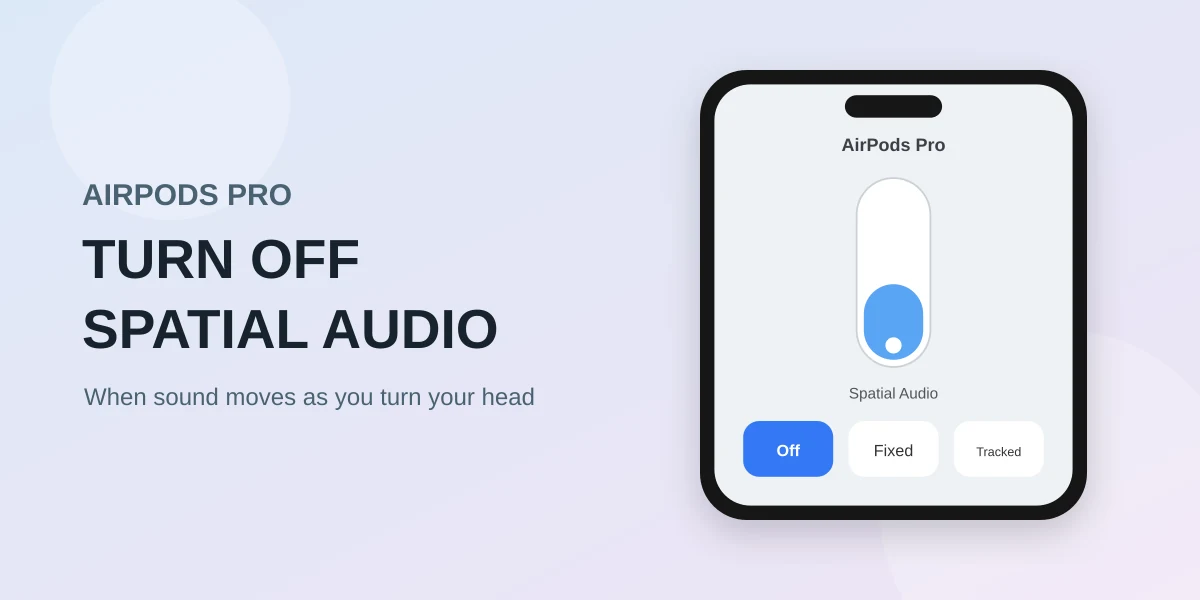
- Connect and wear the AirPods, then open Control Center.
- Press and hold the volume slider, tap Spatial Audio and choose Off.
- Choose Fixed instead if you want the spacious effect without sound shifting as you move your head.
If music gets louder on one side when you turn your head, the AirPods may be working exactly as configured. Dynamic head tracking tries to keep the soundstage attached to the iPhone or screen. Your head moves; the virtual speakers do not.
Why the left-right balance seems to move
Imagine a pair of speakers in front of a television. Turn your head left and the right speaker becomes more prominent. Head-tracked Spatial Audio recreates that relationship through the AirPods. It can make dialogue feel fixed to a movie screen, but it can also make music feel unstable while walking, working or looking around.
The quickest test is to select Fixed. If the balance stops moving, the speakers and battery are probably not the cause. You can then decide whether to keep fixed spatial processing or return to ordinary stereo.
Turn off Spatial Audio from Control Center
- Put on the AirPods and connect them.The control appears when compatible AirPods are active. Start playing audio so the change is easy to hear.
- Open Control Center.Swipe down from the top-right on Face ID iPhones, or up from the bottom on models with a Home button.
- Press and hold the volume slider.Use the slider showing the AirPods icon. A quick tap is not enough; open the expanded panel.
- Tap Spatial Audio or Spatialize Stereo.The wording depends on the content and iOS version.
- Select Off.Select Fixed when head movement is the only part you want to remove.

Off, Fixed or Head Tracked?
| Setting | What you hear | Choose it when |
|---|---|---|
| Off | Ordinary stereo or the source’s standard mix | You dislike the spatial effect itself |
| Fixed | Spatial processing without movement tracking | You want immersion but a stable balance |
| Head Tracked | Sound stays anchored to the screen | You are watching screen-centered video |
For the specific complaint that sound changes when you look left or right, Fixed is the useful middle option. It removes the motion response without discarding the spatial mix.
Disable head tracking across apps
Control Center can remember a choice by app or content type. To prevent the sound field from following the iPhone more broadly, open:
This setting changes the tracking behavior. It does not automatically turn off Noise Cancellation or Transparency mode.
If one AirPod stays quieter with your head still
- Center the balance: Settings → Accessibility → Audio & Visual → Balance.
- Check the seal: a poor ear-tip fit can remove bass and make one side seem quieter.
- Inspect the mesh: debris can reduce actual output. Follow Apple’s cleaning instructions.
- Pair again: forget the AirPods in Bluetooth settings and reconnect them.
- Try another device: the same quiet side on multiple devices points to the AirPod itself.
Frequently asked questions
Will turning off Spatial Audio disable noise cancellation?
No. Noise Cancellation, Transparency mode and Spatial Audio are separate controls.
What is the difference between Fixed and Head Tracked?
Fixed keeps the spatial mix in place relative to your head. Head Tracked anchors the sound field to the iPhone or screen, so turning your head changes the perceived direction.
Why is one AirPod still quieter after Spatial Audio is off?
Check the iPhone balance control, ear-tip seal, speaker mesh and pairing. A difference that remains across devices can indicate a hardware problem.